How to Set Alerts on TradingView (Step by Step)
On this page
Short answer: Open the alert dialog with Alt + A (Option + A on Mac) or the Alert button on the top toolbar, choose a condition (price, indicator or drawing), set the trigger and expiration, pick how you want to be notified, then click Create. The free Basic plan allows 3 active price alerts; paid plans add indicator alerts and much higher limits.
This guide walks through each step, explains what every setting in the dialog does, and shows which plan you need for the alerts you have in mind.
Four ways to open the alert dialog
TradingView's Help Center lists several ways to start an alert. They all open the same "Create alert" window.
- Keyboard: press Alt + A on Windows or Option + A on Mac while the chart is selected.
- Toolbar: click Alert on the top toolbar, or open the Alerts panel on the right toolbar and click Create alert.
- Right-click: right-click the chart and choose Add alert on…, or right-click a trend line or channel to create an alert on that drawing.
- Price scale: hover over the price scale on the right, click the + button that follows your cursor, and create a quick alert at that exact price.
The price-scale method is the fastest for a simple "tell me when price reaches X" alert. The dialog is better when you want an indicator or drawing condition.
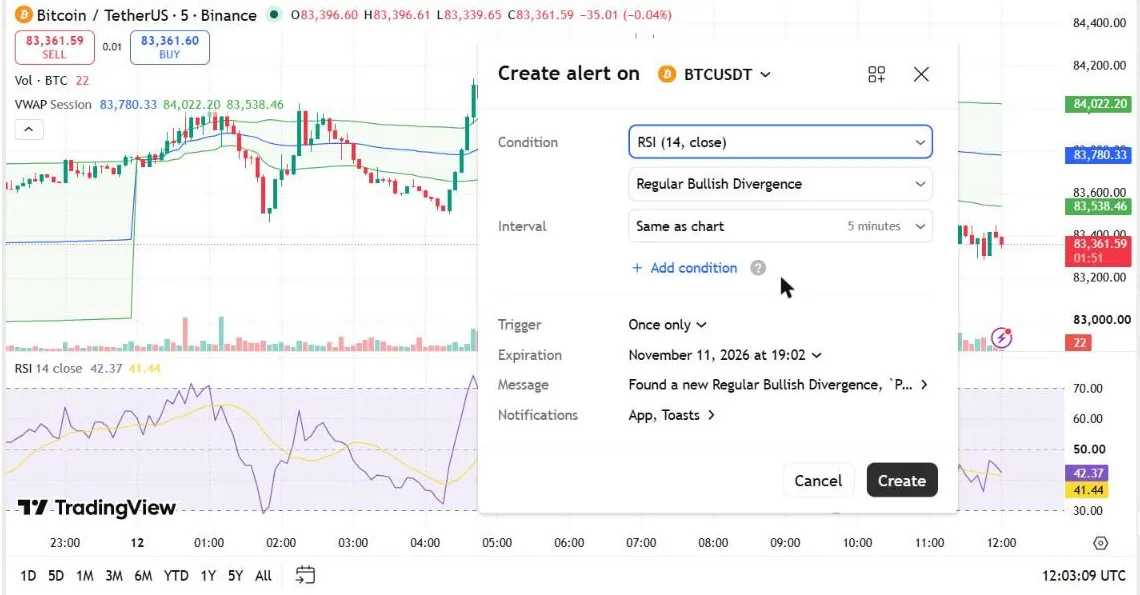
Setting up the alert, field by field
Condition
The first dropdown chooses what the alert watches: the price of the symbol, an indicator or strategy on your chart, or a drawing such as a trend line. The second line chooses the operator, for example Crossing, Crossing Up, Greater Than or Entering Channel, and the third sets the value.
Read the condition back to yourself before saving. "Crossing" fires in both directions; "Crossing Up" only fires when price moves from below to above.
Trigger
The trigger controls how often the alert can fire:
| Trigger | What it does | Good for |
|---|---|---|
| Only once | Fires the first time the condition is met, then stops | A one-off price target |
| Every time | Fires each time the condition is met | Levels you trade repeatedly |
| Once per bar | Fires at most once per bar, as soon as the condition is met during the bar | Early warnings |
| Once per bar close | Fires only if the condition is still true when the bar closes | Confirmed signals |
| Once per minute | Fires at most once per minute | Fast-moving intraday conditions |
Intrabar triggers can fire on a move that reverses before the bar closes. If you only want confirmed signals, use Once per bar close.
Expiration
Alerts on Basic last up to one month, and up to two months on Essential and Plus, according to TradingView's pricing page. Premium and Ultimate allow alerts that don't expire. Note the date: an expired alert stops silently.
Message
The alert name is the title you see in the Alert manager, the pop-up and the alert log. The message is the text sent with the notification. Make it specific, for example "BTCUSDT 5m: price reclaimed VWAP", so you know what to do when it arrives.
Notifications
You can choose app notifications, an on-screen pop-up and toast, sound, email, and on paid plans a webhook. Phone alerts need the TradingView mobile app installed and signed in to the same account.
Price alerts vs indicator alerts
A price alert watches the symbol's price against a number or a drawing. An indicator alert (TradingView calls these technical alerts) watches values from an indicator or strategy on your chart, such as RSI crossing 30.
| Plan | Active price alerts | Technical alerts on indicators, strategies and drawings | Alert duration |
|---|---|---|---|
| Basic (free) | 3 | Not included | 1 month |
| Essential | 20 | 20 | 2 months |
| Plus | 100 | 100 | 2 months |
| Premium | 400 | 400 | Don't expire |
| Ultimate | 1,000 | 1,000 | Don't expire |
Source: TradingView pricing page, checked October 12, 2026.
On our Basic account the dialog still lets you pick an indicator such as RSI as the condition, so check your plan's limits before relying on an indicator alert.
Alerts on indicators: one thing to remember
An alert keeps the indicator settings it was created with. If you later change the indicator's length or source, the alert does not update. TradingView's Help Center states this directly. Delete the alert and create it again after any change.
The same applies to custom Pine scripts: if you edit and save the script, existing alerts keep running the old version.
Managing your alerts
Open the Alerts panel on the right toolbar. The Alerts tab lists active, stopped and expired alerts; you can edit, restart or delete each one. The Log tab shows every time an alert fired. If you think an alert "didn't work", check the log first: if it is there, the alert fired and the problem is the notification. Our guide to alerts that don't trigger covers the common causes.
How many alerts do you need?
Count the levels you watch in a normal week. Three alerts on Basic is enough for one or two swing trades. If you trade several symbols, want alerts on indicators, or need a webhook to send signals to a bot, you need a paid plan. The plan picker turns those answers into one plan, and our plan comparison shows every limit side by side.
FAQ
How many alerts can I set on TradingView for free?
Three. The free Basic plan allows 3 active price alerts, each lasting up to one month. Alerts on indicators need a paid plan.
Do TradingView alerts work when my computer is off?
Yes. Alerts run on TradingView's servers, so they fire even if your browser is closed. You still need a way to receive them, such as the mobile app or email.
How do I get alerts on my phone?
Install the TradingView app, sign in with the same account, and allow notifications for the app in your phone's settings. Then select app notifications in the alert's Notifications section.
Why am I not receiving alert notifications on TradingView?
Usually it is a phone setting, not the alert. TradingView's Help Center lists the usual fixes: allow notifications for the TradingView app, make sure push notifications were ticked when the alert was created, sign in with the same account that created it, turn off Do Not Disturb, and update the app. On Android, also exclude TradingView from battery optimization and allow background activity. See the official steps for iPhone and Android.
Can I set one alert for a whole watchlist?
Watchlist alerts exist on Premium (2) and Ultimate (15), according to TradingView's pricing page. Other plans need one alert per symbol.
Keep learning
- TradingView alert not triggering? 9 causes, fixed
- TradingView free plan limits and 7 workarounds
- TradingView webhook alerts: setup and examples
Last checked against TradingView's official pages: October 2026. Nothing here is financial advice.